Create a Pricing List
Create Pricing List
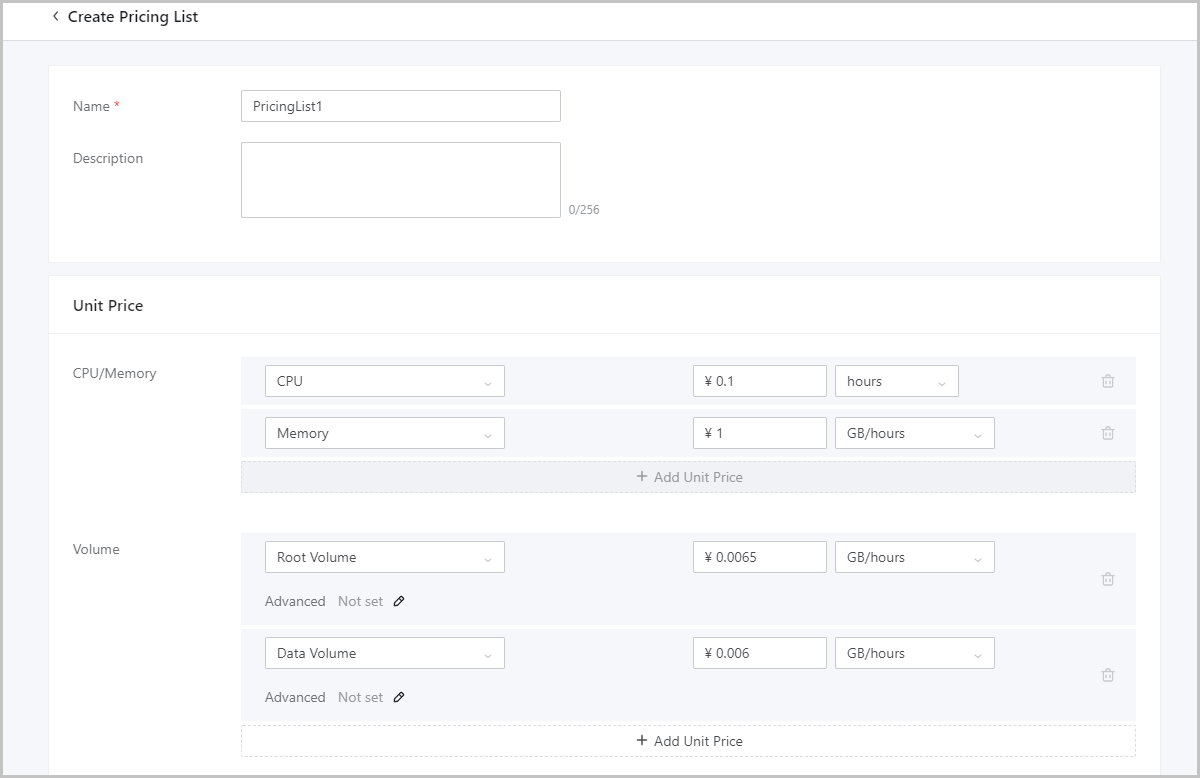
On the main menu of ZStack Cloud, choose . On the Pricing List page, click Create Pricing List. Then, the Create Pricing List page appears.
On the displayed page, set the following parameters:
- Name: Enter a name for the pricing list.
- Description: Optional. Enter a description for the pricing list.
- Unit Price: Click Add Unit
Price and add unit prices for resources.
The resources include CPU, memory, root volume, data volume, GPU device, elastic baremetal instances, public IP of VM instance, and public VIP.
- To set unit price for CPU, configure the following:
- Price: 0 to 10000, accurate to five decimal points.
- Time Unit: second, minute, hour, day, week, and month (30 days).
- To set unit price for memory, configure the following:
- Price: 0 to 10000, accurate to five decimal points.
- Resource Unit: MB, GB, and TB.
- Time Unit: second, minute, hour, day, week, and month (30 days).
- To set unit price for root volume, configure the following:
- Advanced: Configure advanced parameters in JSON format
based on disk
performance.Sample:
{ "priceUserConfig": { "priceKeyName": "Enter a value for the priceKeyName field." } } Note: Make
sure the value of the
priceUserConfig parameter is
consistent with the configuration in the advanced
parameter settings in the instance offering.
Otherwise, bills cannot be
generated.
Note: Make
sure the value of the
priceUserConfig parameter is
consistent with the configuration in the advanced
parameter settings in the instance offering.
Otherwise, bills cannot be
generated. - Price: 0 to 10000, accurate to five decimal points.
- Resource Unit: MB, GB, and TB.
- Time Unit: second, minute, hour, day, week, and month (30 days).
- Advanced: Configure advanced parameters in JSON format
based on disk
performance.
- To set unit price for data volume, configure the following:
- Advanced: Configure advanced parameters in JSON format
based on disk
performance.Sample:
{
    "priceUserConfig": {
        "priceKeyName": "Enter a value for the priceKeyName field."
    }
}
Note: Make
sure the value of the
priceUserConfig parameter is
consistent with the configuration in the advanced
parameter settings in the disk offering.
Otherwise, bills cannot be
generated. - Price: 0 to 10000, accurate to five decimal points.
- Resource Unit: MB, GB, and TB.
- Time Unit: second, minute, hour, day, week, and month (30 days).
- Advanced: Configure advanced parameters in JSON format
based on disk
performance.
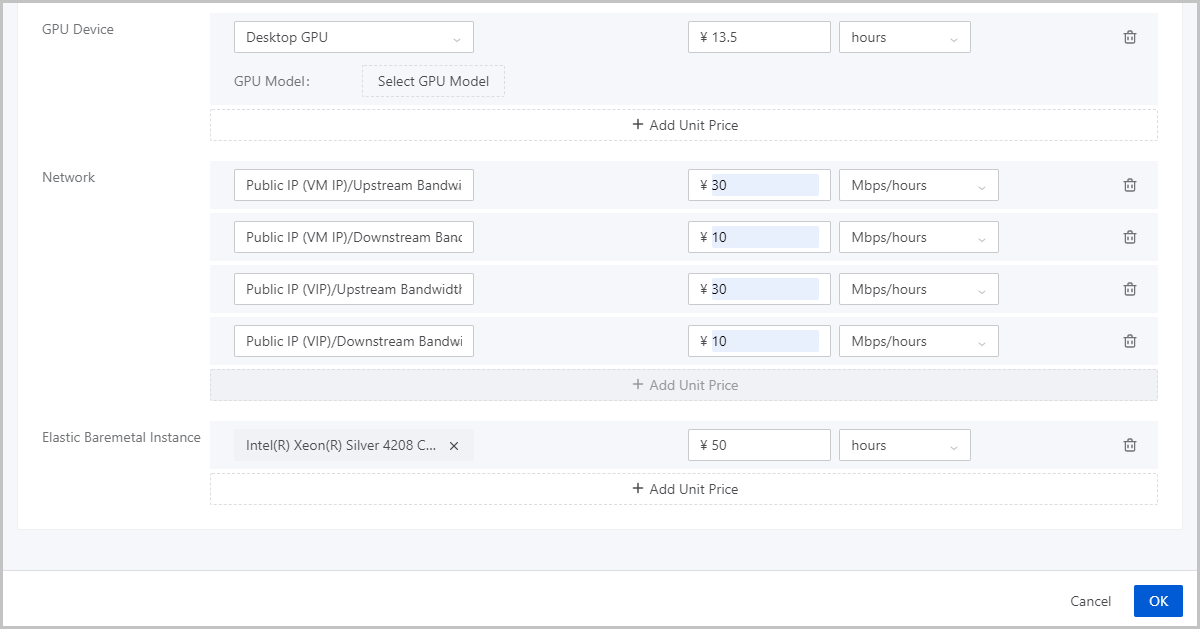
- To set unit price for GPU, configure the following:
- GPU Type: Select Desktop GPU or Compute GPU.
- GPU Model: Enter the model of the passed-through GPU.
- Price: 0 to 10000, accurate to five decimal points.
- Time Unit: second, minute, hour, day, week, and month (30 days).
- To set unit price for public IP, configure the following:
- Resource Type: Select Public IP (VM IP) or Public IP
(VIP).
- If you select Public IP (VM IP), you can bill public IP addresses of VM instances that are created by using public networks. You can set QoS for VM NICs. Then the IP addresses are billed.
- If you select Public IP (VIP), you can bill VIPs that are created by using public networks and are used to provide network services. You can set QoS for the VIPs. Then the VIPs are billed.
- Upstream Bandwidth price: 0 to 10000, accurate to five decimal points.
- Downstream Bandwidth price: 0 to 10000, accurate to five
decimal points.Note: If you configure unit price for
public IP addresses, you must configure upstream
bandwidth, downstream bandwidth, or both for the
public IP addresses.
- Resource Unit: Kbps, Mbps, and Gbps.
- Time Unit: second, minute, hour, day, week, and month (30 days).
Note: VM public IP addresses and public VIPs are billed
based on the consumed bandwidth resources. Before you
configure unit prices for the public IP addresses, note
that:- You need to set QoS for the public IP addresses.
- IPv6 VIPs do not support billing.
- Resource Type: Select Public IP (VM IP) or Public IP
(VIP).
- To set unit price for elastic baremetal instance,
configure the following:
- Elastic Baremetal Instance Offering: Select an elastic baremetal instance offering and set a unit price for the offering.
- Price: 0 to 10000, accurate to five decimal points.
- Time Unit: second, minute, hour, day, week, and month (30 days).
- To set unit price for CPU, configure the following: